


We open the MENU by giving the MENU button on the remote.
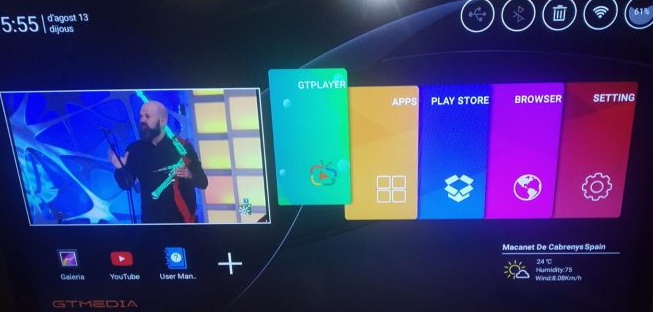
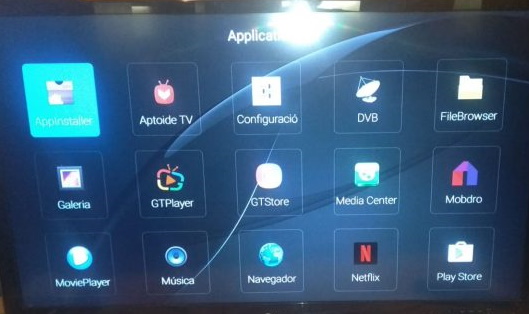
We go to APPS and open the app called DVB, which is where we view Satellite television.
Once we are inside DVB, we go back to MENU and a menu opens on the left side of the screen like the image shown below.
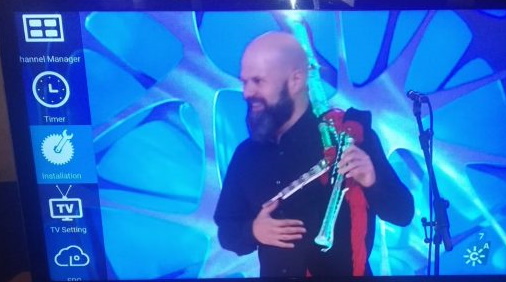
We give INSTALLATION the image window opens.
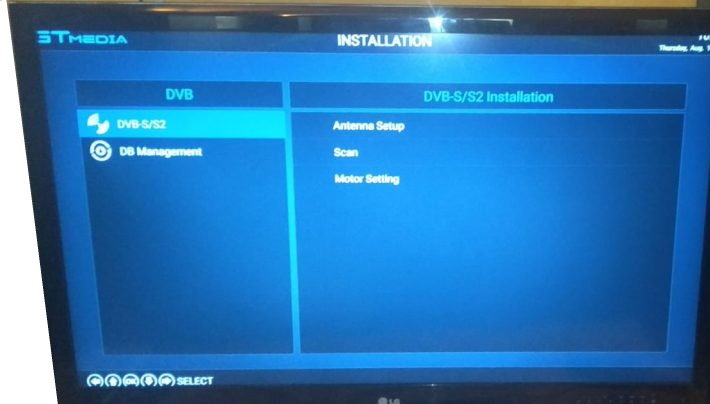
In this screen we give the button six four times. 6666 and a hidden panel called CS PROTCOL will be activated
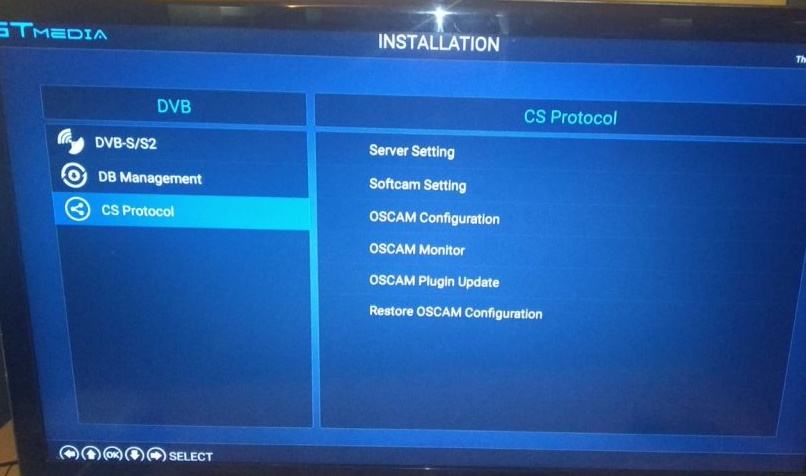
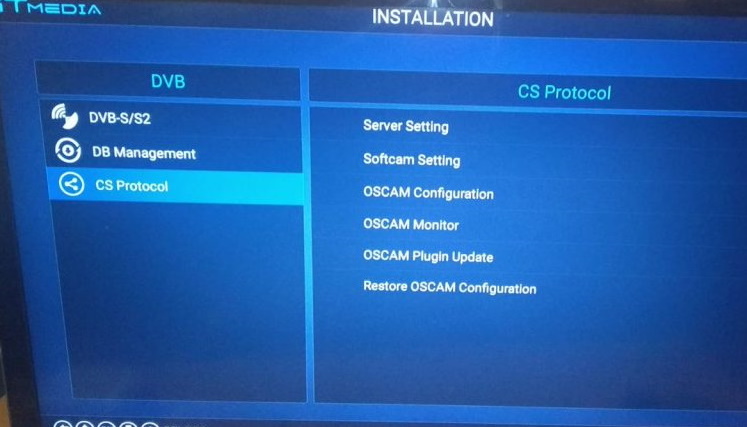
Once we have activated our hidden menu we go to CS PROTOCOL and select SERVER SETTINGS.
Here we can add the line in two ways, manually with the remote, giving the RED ADD button. Or faster and with USB, with a cccam.cfg file by clicking the BLUE MORE button. We go with the first one manually, we click the red button and the following menu appears that we must enter the data of our line.
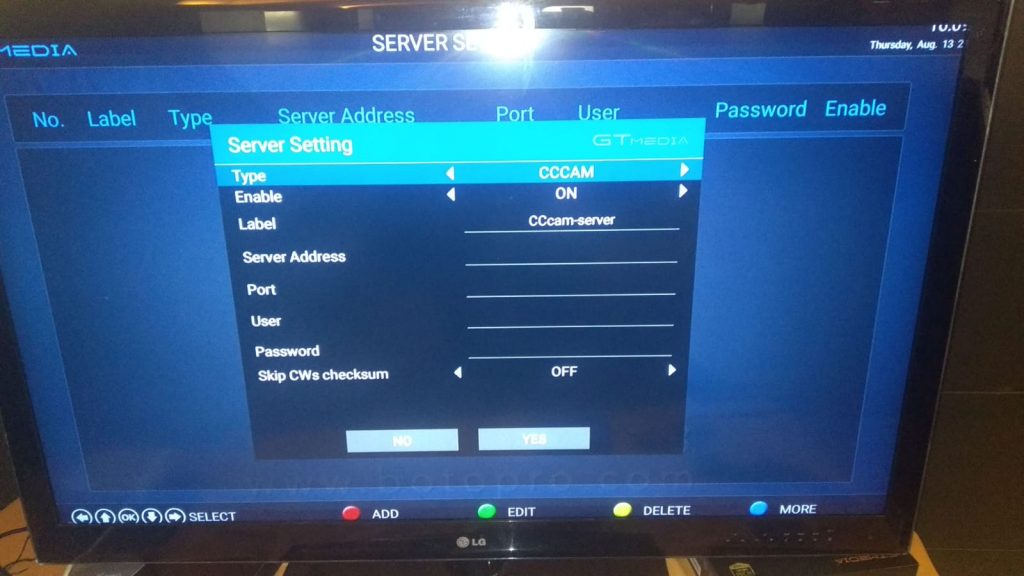
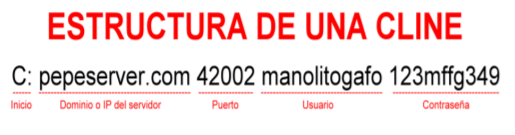
GTMEDIA GTS CCcam add protocol
And now we are going to explain how to put with a cccam.cfg file, we have to copy our C: lines in a notepad and rename it by cccam.cfg, we copy it to the root of our pendrive and go to the receiver. We give the BLUE MORE button.
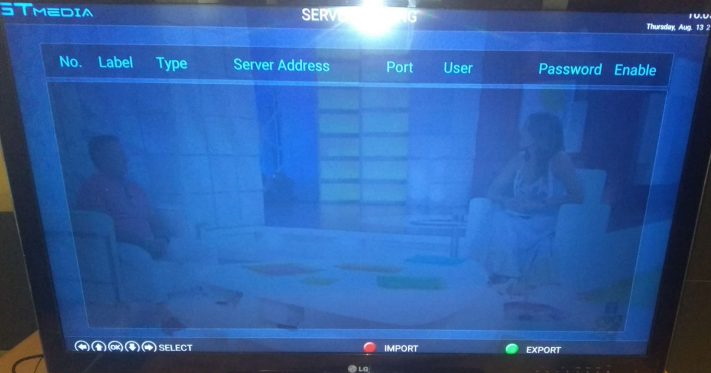
Now we give the RED IMPORT button and in this way we will automatically copy our C: lines that we have inside our cccam.cfg file.
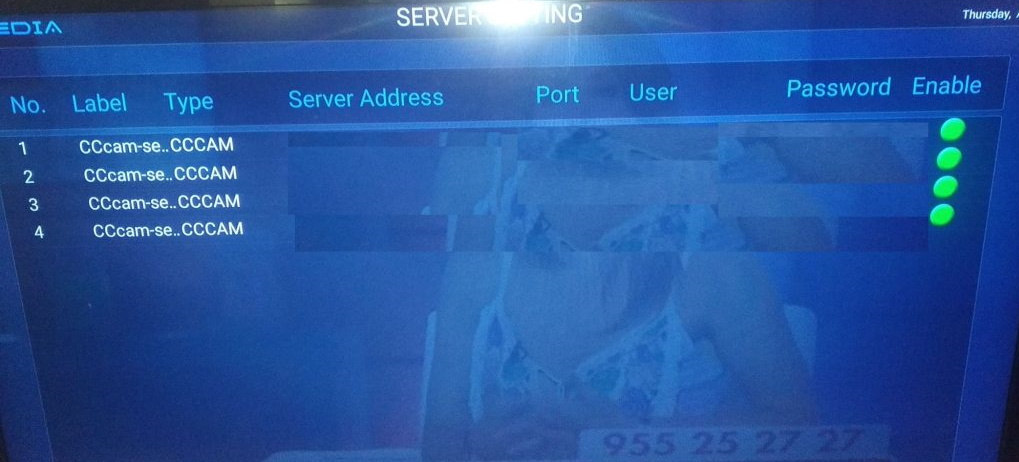
And our lines will come out in green.